

Only steps waiting for a retry can be retried now. If a run failed after all retries,
use the DLQ to resume or restart it instead.
Retrying via console
In your Upstash Workflow console, go to theLogs tab and find the step that is waiting
for a retry. Press the Retry Now button on the right side:
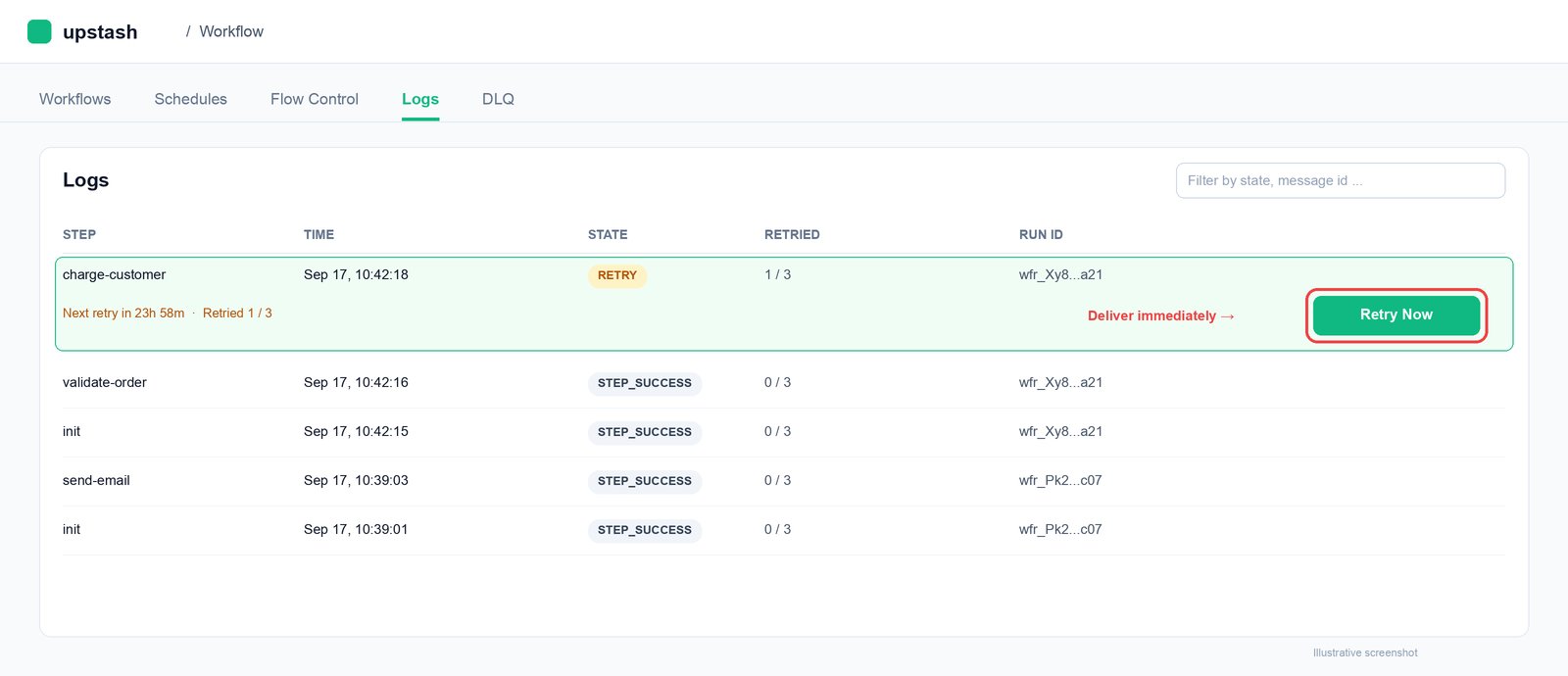
Retrying programmatically
You can retry a step now using the Upstash Workflow REST API with the message ID of the step.cURL
200 when the step is scheduled for immediate execution, and 404
when the step is not found or is not waiting for a retry.
If multiple parallel steps are waiting for a retry,
send a request for each of them.
Message ID
The message ID of a step is available in the run logs. Fetch the logs of your run with the logs API orclient.logs, and find the step in STEP_RETRY state.
Its messageId is the ID you need.